Add Android and iOS app store apps to the Apps Library
Apple App Store and Google Play store each maintain a collection of apps developed for mobile devices. Administrators can download apps from these platforms and maintain them in the KACE Cloud Apps Library.
To add Android and iOS app store apps to the Apps Library:
- Go to the Libraries tab.
- Click the Apps icon.
- iOS and iPadOS apps:
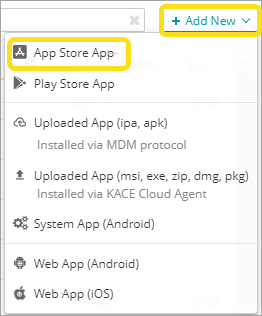
- Choose Add New > App Store App.
- Under Select Apps to Import, specify the target OS and the country where the app is available.

NOTE: The app can only be installed on a target device if it is available in the country where the device is located.
- Choose Add New > App Store App.
- Android apps:
-
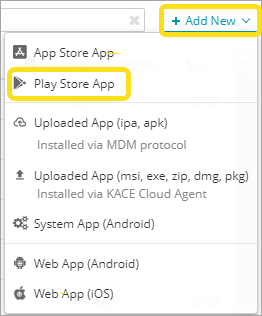
Choose Add New > Play Store App.
-
Choose Add New > Play Store App.
- Search for apps by keyword.
- Select one or more apps.
- Select one or more of the following check boxes, as applicable:
- Automatically keep these apps up to date: Allow KACE Cloud to automatically install the app updates as they become available.
- Publish these apps to the app catalog: Allow device users to install this app through the KACE Cloud Connect app.
-
iOS apps only.

NOTE: To successfully install an iOS app available associated with your organization's Volume Purchase Program (VPP) you must ensure that you have a sufficient number of licenses. Exceeding the license number prevents you from installing a VPP iOS app. You can review the numbers of available licenses for each app in the Apps Library, in the Licenses column. For more details, see View available iOS app licenses.
Associate an AppConfig.xml file with each iOS app for which you want to enable a managed configuration. For more information, see iOS and macOS apps: Upload AppConfig.xml to enable managed configuration.
- Click Add.